National Taiwan Ocean University | VPN6 Setup Guide (Student Dormitory Network)
Verify your VPN without a smartphone
Use Authenticator App in Chrome to generate 6-digit one-time codes. Complete these three tasks to connect to the student dormitory VPN.
⚠️ Before your first setup:Apply for VPN service through the Academic Information System first (activated immediately upon application). You cannot log in to the VPN Portal until the service is activated.
Choose the option that best matches your setup. The page will take you to your next task.
🔎 Check these two questions:
① Can you open Sophos Connect on your computer? No → Start with Task 1.
② Does Chrome Authenticator show a VPN 6-digit verification code? No → Start with Task 2; Yes → Go to Task 3.
🚀 Tasks to complete
Complete one task at a time. Check that it is done before moving on.
1
💻 Install VPN on your computer
About 5 minutes
1Download and install Sophos Connect
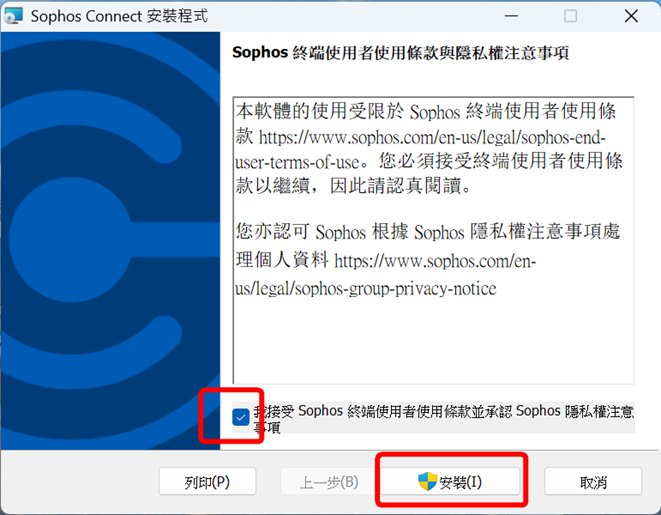
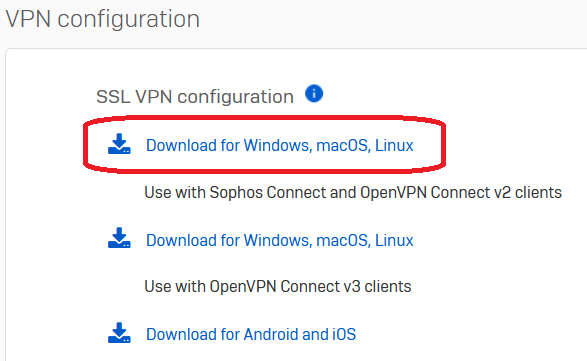
Download the university-provided Sophos Connect. Follow the installation prompts to accept the terms, allow the app to make changes to your device and launch it when installation is complete.
✅ Done when: Sophos Connect opens successfully on your computer.
2
🌐 Set up Chrome authentication
About 8 minutes
1Install Authenticator App
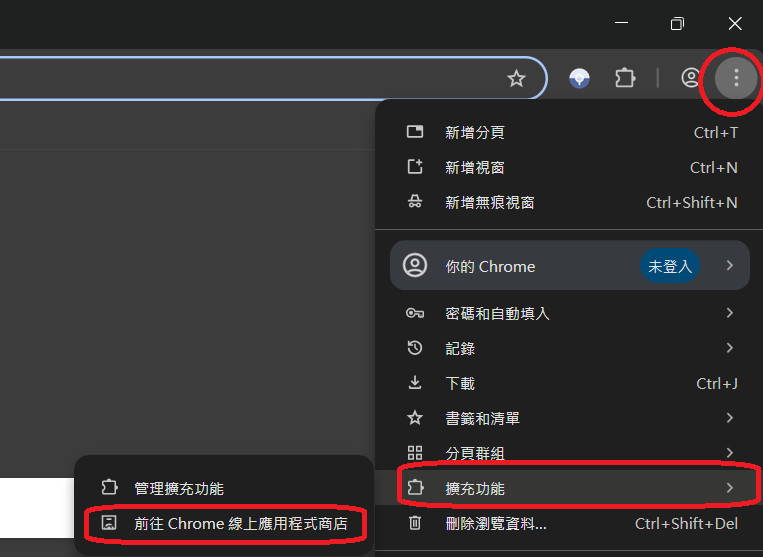
Open the Chrome Web Store
Search for Authenticator App and install it
Find the app shown in the image, then click Add to Chrome and Add extension.
2Pin the extension and set a password
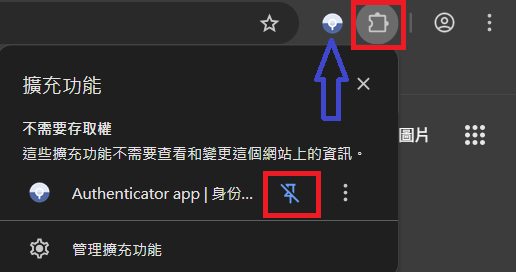
In the Chrome extensions menu, click the pin next to Authenticator App to keep it on the toolbar.
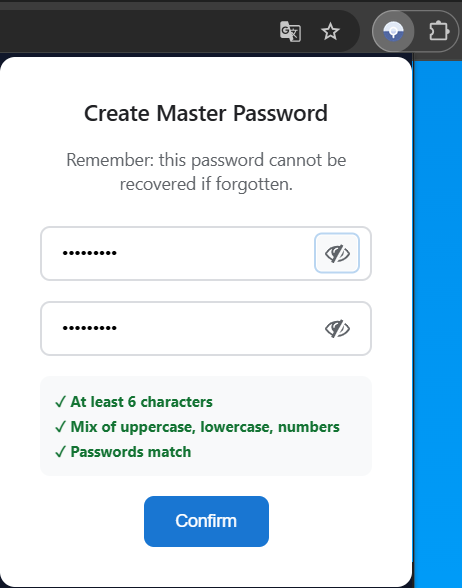
When you first open the extension, follow the prompts to set its password.
Use at least 6 characters, including uppercase letters, lowercase letters and numbers. Only you know this password. Remember it: if you lose it, you must remove the extension and set it up again.
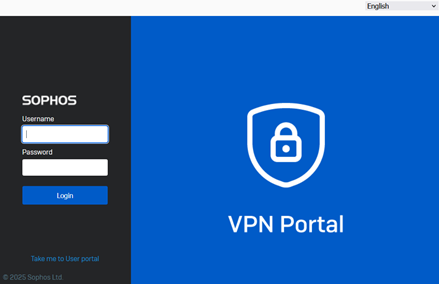
3Log in to the NTOU VPN Portal
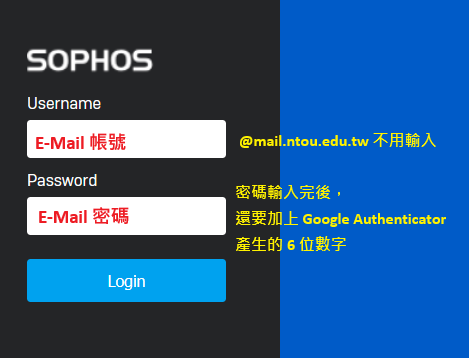
Log in with your university email account. Do not include the domain after your username.
UsernameStudent ID / username
PasswordUniversity @mail email password
Common mistake: VPN uses your university @mail.ntou.edu.tw email password, not your @email.ntou.edu.tw (Google) email password.
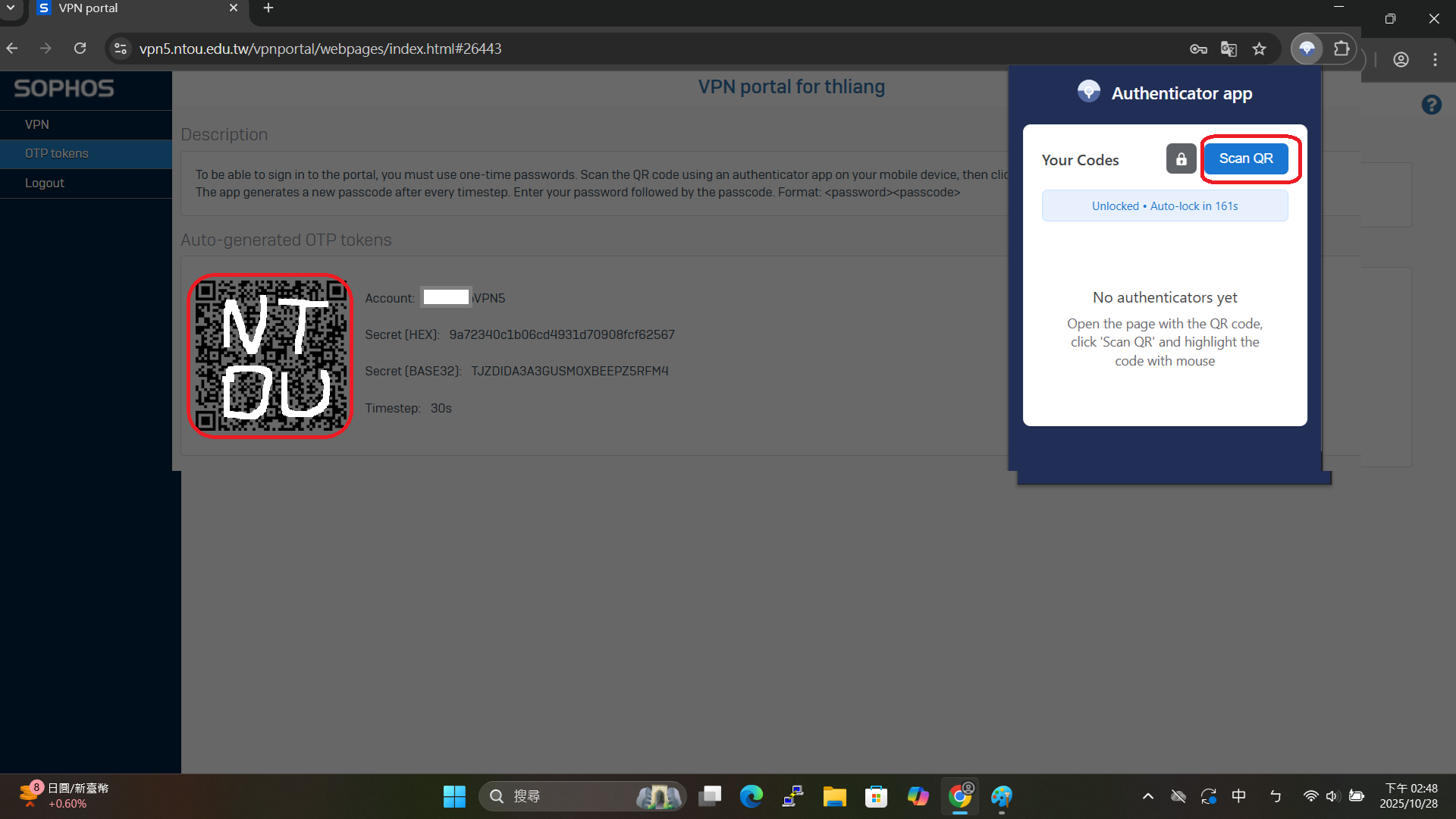
After logging in, open Authenticator App and click Scan QR. Use the crosshair to select the QR code on the VPN Portal screen.
Note: to log in to the VPN Portal again: append the current 6-digit one-time code directly to your email password.
5Download and import your personal configuration
Open VPN6 Portal again. For this login, append the current 6-digit verification code directly to your university email password, with no spaces.
For example, if your password is ntouvpn and the verification code is 654321, enter ntouvpn654321.
After logging in, download your personal SSL VPN Configuration file. Open the downloaded file to import it into Sophos Connect. Keep your personal configuration file safe.
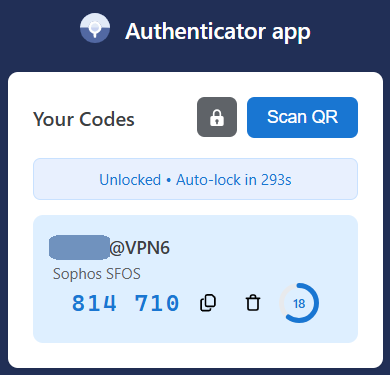
✅ Done when: Authenticator displays @VPN6 with a 6-digit verification code, and your personal configuration has been imported into Sophos Connect.
3
🔐 Connect to VPN
Start here for future connections
1Open Sophos Connect
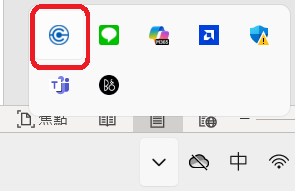
Open Sophos Connect. If you cannot find the app, try restarting your computer.
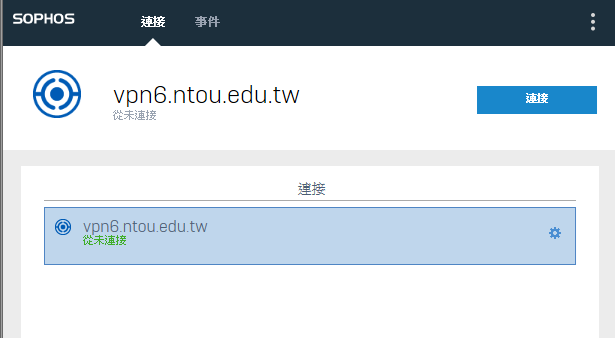
Select the imported VPN6 connection, then click Connect.
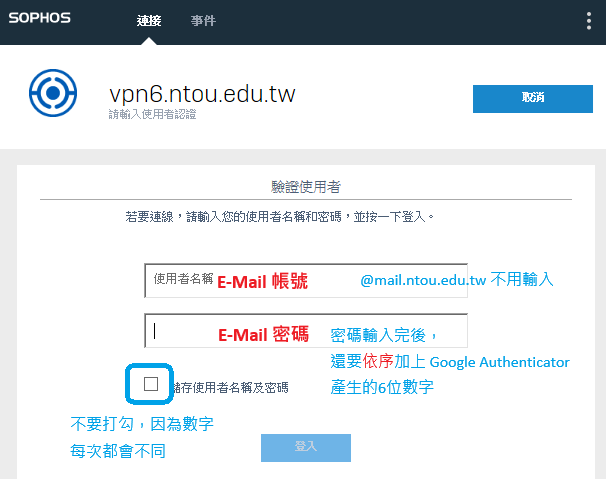
2Enter your username and combined password
UsernameUsername / Student ID
PasswordUniversity @mail email password followed by the current 6-digit code from Chrome Authenticator, with no spaces
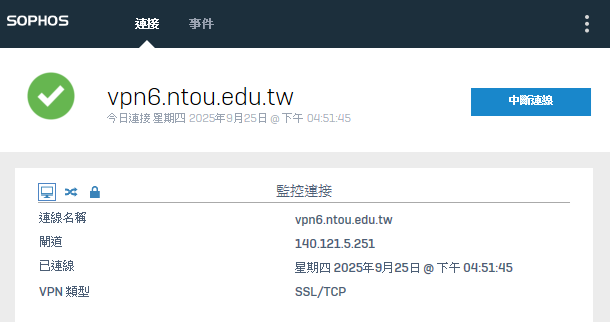
3Check that you are connected
Click Connect. When the status shows Connected, VPN6 is connected and you can access the campus resources available through the student dormitory VPN.
🎉 Connected! When you see Connected, the VPN6 connection is established.
Troubleshooting: still unable to connect after clicking Connect?
Check that your username does not include @mail.ntou.edu.tw or any other domain.
Check that you are using your university @mail email password.
Check that the 6-digit code follows your email password with no spaces. If the code has expired, wait for a new code and enter it again.
Check that you downloaded your personal configuration from VPN6 Portal and imported it. If you cannot find Sophos Connect, restart your computer.