VPN5 Setup - Multi-Factor Authentication (MFA) Mechanism - Mac
National Taiwan Ocean University | VPN Setup Guide | Mac
Set up your VPN in just 3 tasks
Choose your current setup status to see the steps you need next.
⚠️ Before your first setup:Apply for VPN service through the Academic Information System first (activated immediately upon application). You cannot log in to the VPN Portal until the service is activated. Open Academic Information System
👋 What is your current setup status?
Your next step:Complete Tasks 1 → 2 → 3 in order.
🔎 Check these two questions:
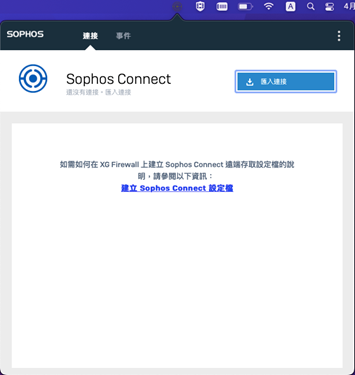
① Can you open Sophos Connect on your Mac?
No →
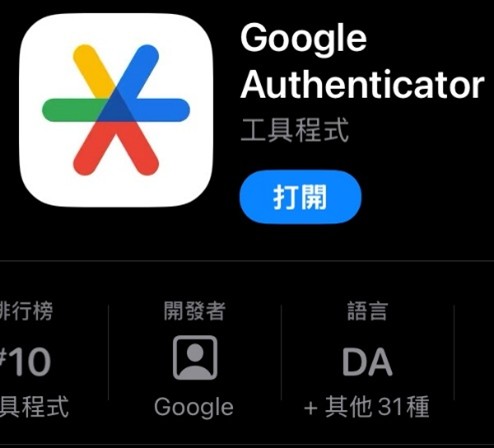
② Does Google Authenticator on your phone show a VPN 6-digit verification code?
No →
Yes →
🚀 Tasks to complete
Complete one task at a time. Check that it is done before moving on.
1
💻 Install VPN on your Mac
About 5 minutes
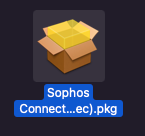
1Download and install Sophos Connect
Download Sophos Connect for Mac, open the installer and follow the macOS installation instructions.
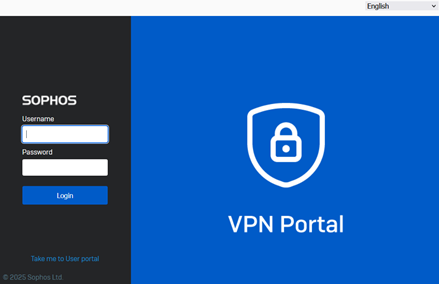
❌ Do not use your Google @email.ntou.edu.tw email password
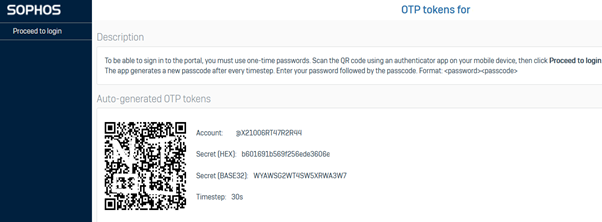
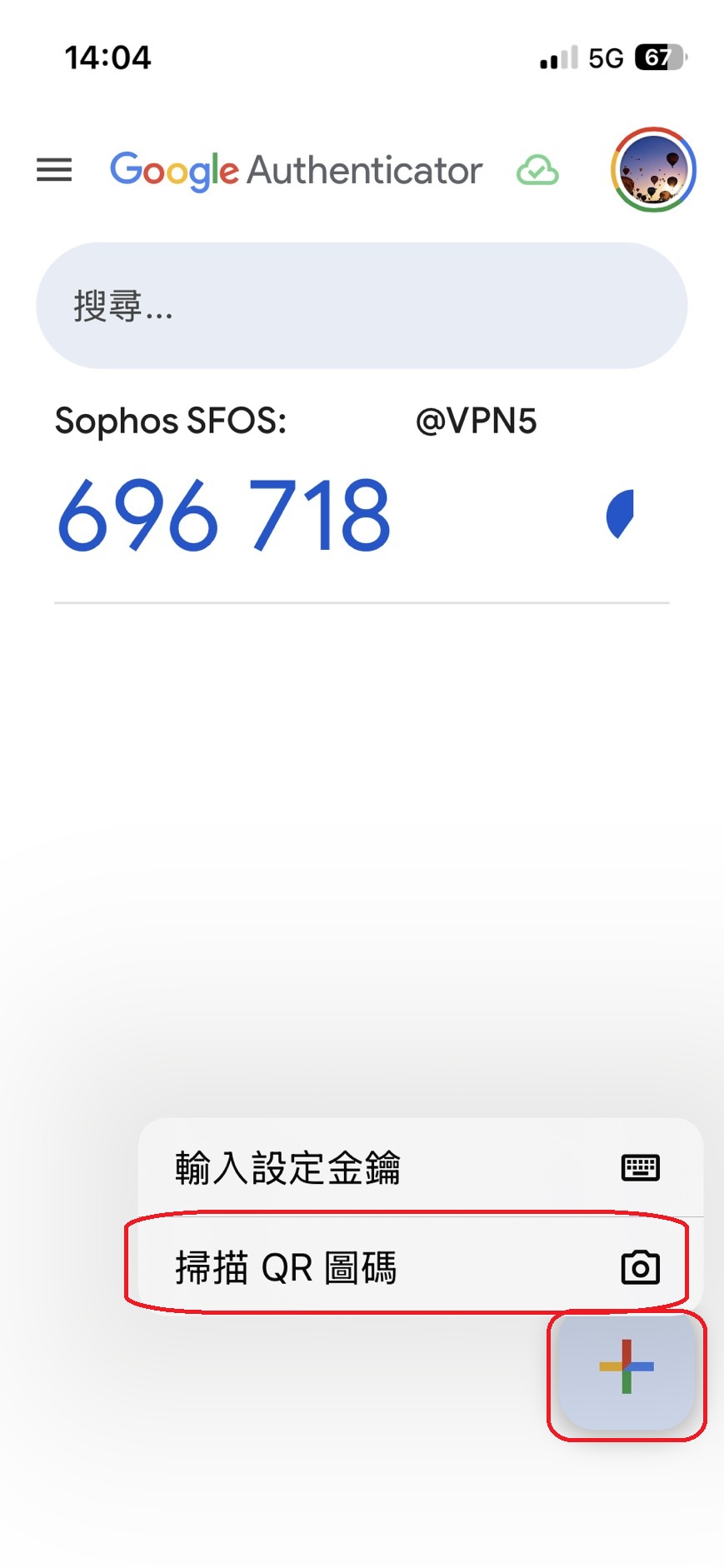
3Scan the QR code
Use Google Authenticator on your phone to scan the QR code displayed in the VPN Portal. If no QR code appears on your first login, try another browser.
Use Google Authenticator on your phone to scan the QR code displayed in the VPN Portal.
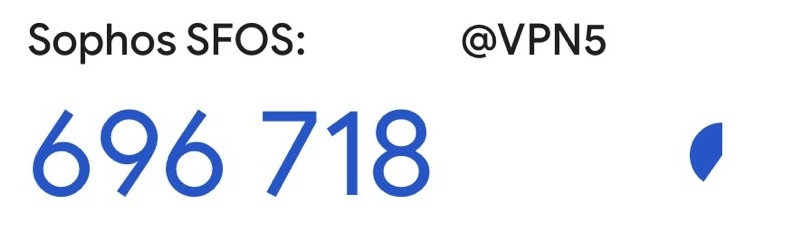
4Check for a 6-digit verification code
Authenticator will display:
Sophos SFOS: username@VPN5.
The 6-digit code refreshes every 30 seconds.
Do not delete the Sophos SFOS entry.You will need this one-time code each time you connect to VPN.
✅ Done when:Your phone displays the VPN 6-digit verification code.
3
🔐 Connect to VPN
Start here for future VPN connections
1Open Sophos Connect
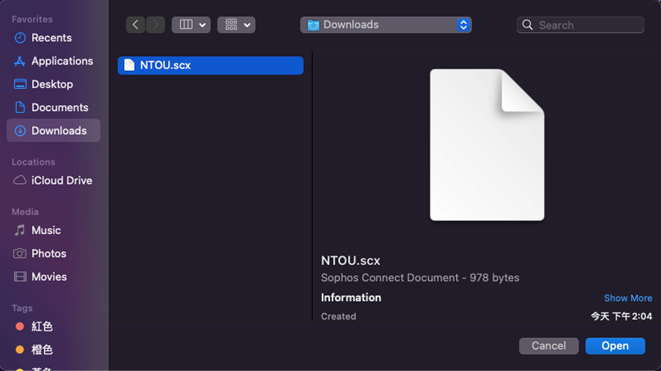
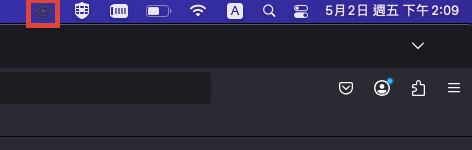
Click the dimmed Sophos Connect icon in the Mac menu bar and select the NTOU vpn5.ntou.edu.tw connection.
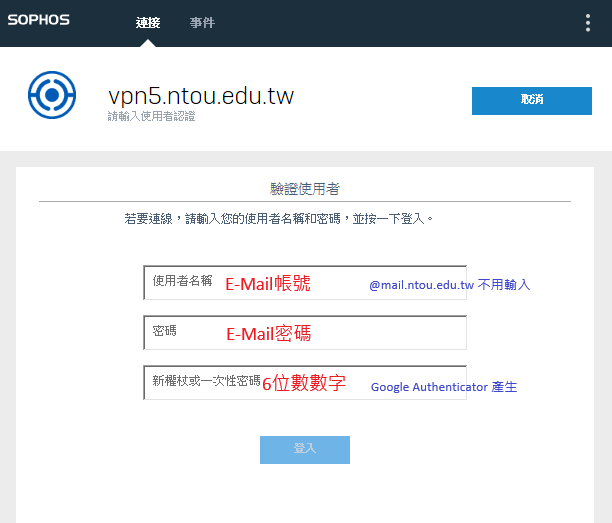
2Enter your login details
Username
Username / Student ID
Password
@mail email password
Code
6-digit Google Authenticator code
3Click Connect
Wait for Sophos Connect to establish the connection.
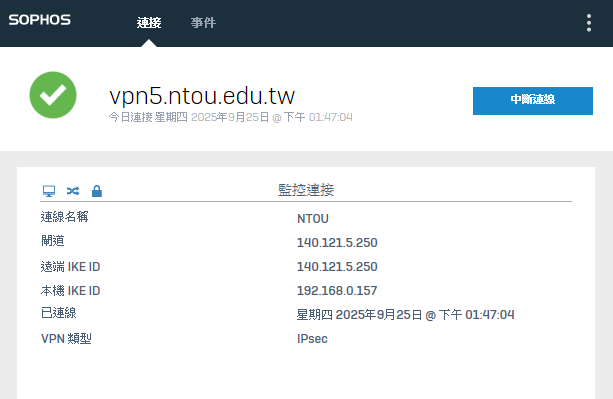
🎉 Connected!
When the status shows Connected, your VPN is connected and you can access campus resources.