Jump to the main content block
:::
:::

Setting up Off-campus Access

National Taiwan Ocean University | Office of Library and Information Technology

Off-Campus Access to Electronic Resources

You can access university-subscribed electronic resources off campus or from student dormitories. Choose the method that suits you, then follow the instructions.

Choose an access method

Looking for journals, e-books or databases? Try the Electronic Resources System first. No VPN installation is required.

No software installation

Electronic Resources System

Search for databases and electronic resources. Click the resource URL and authenticate with your university email username and password.

View instructions →
Connect to the campus network

VPN Connection

Apply for VPN service, choose VPN5 or VPN6 for your network environment and set up multifactor authentication.

Choose a VPN guide →
Use the university cloud environment

Virtual Computer Classroom

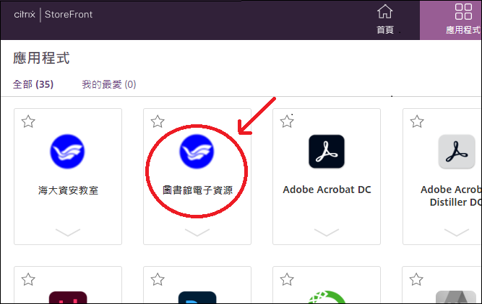
Log in to the Virtual Computer Classroom and open Library Electronic Resources under Applications. Complete the software setup before first use.

View instructions →
Method 1

Electronic Resources System

For direct access to databases, electronic journals and e-books.

  1. Open the Electronic Resources System and search by database name, such as Web of Science.
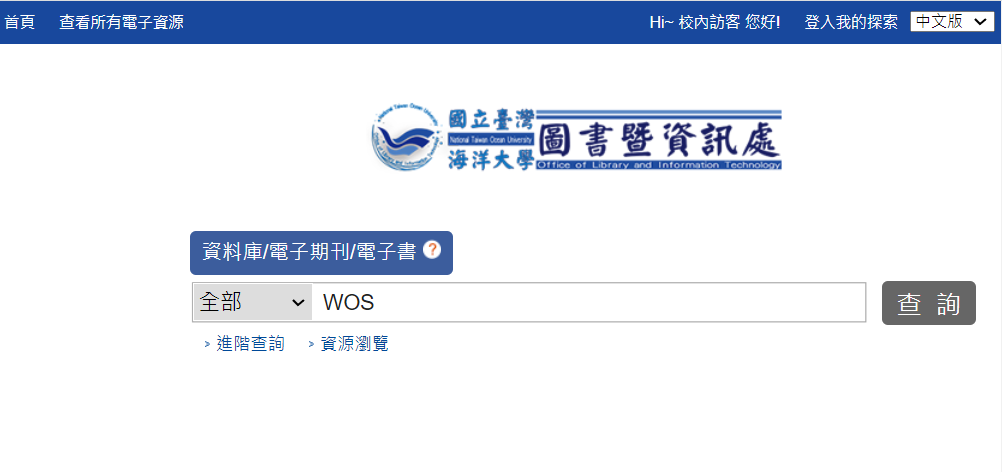
    Database search screen in the Electronic Resources System
    Enter the database name in the search field.
  2. Select the database you need, then click Resource URL.
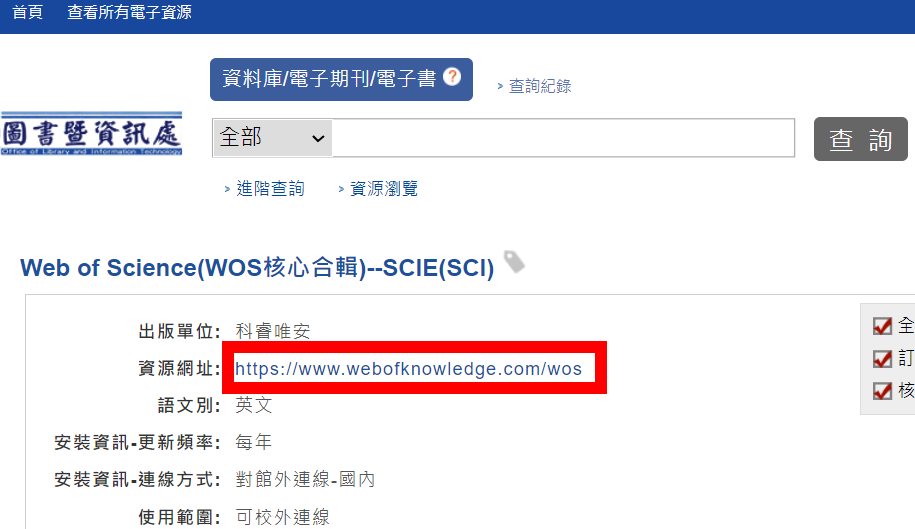
    Resource URL on the database details page
    Open the Resource URL from the database details page.
  3. When the authentication window appears, enter your university email username and password. Access is available after successful authentication.
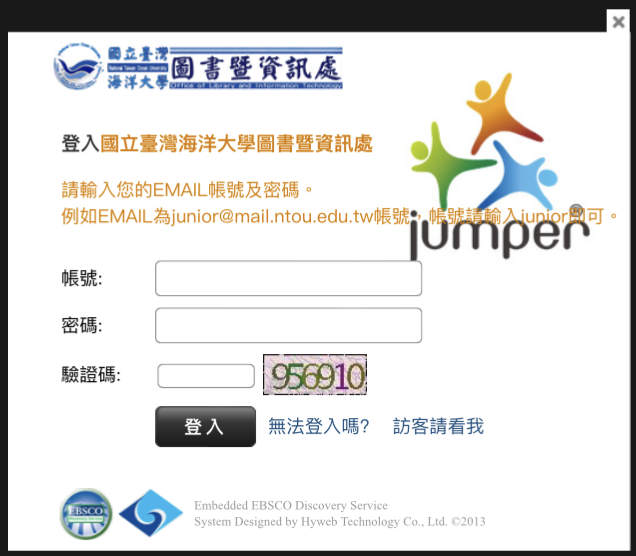
    University email authentication screen in the Electronic Resources System
    Follow the prompts to complete email authentication.
Open Electronic Resources System ↗
Method 2

VPN Connection

Apply for VPN service before first use. Apply through the Academic Information System; approval is immediate. Log in to VPN with your @mail.ntou.edu.tw email username and password, and complete multifactor authentication. Do not use your @email credentials.
Open Academic Information System ↗

Choose VPN5 or VPN6 based on your internet connection

Either VPN5 or VPN6

Internet access is available as soon as you open a browser

Examples include a fixed IP connection, a home router or a dormitory router configured to dial automatically. Choose VPN5 (IPSec) or VPN6 (SSLVPN) as needed.

Choose VPN6

You must enter credentials to dial before accessing the internet

For connections such as PPPoE, use VPN6 (SSLVPN). This applies to student dormitories, including Mulan Student Dormitory, when using this connection method.

Choose your device and authentication method

iPhone / iPad / Android setup guide →

VPN eligibility and usage notes

  1. 1Currently enrolled NTOU students and active faculty and staff may use VPN during their enrollment or employment. Graduates, students on leave, former or retired employees, visiting students taking inter-university courses and non-degree students are not eligible.
  2. 2New students may apply only after completing registration, receiving confirmation from the Registration and Curriculum Section and having their status updated to Enrolled in the Academic Information System.
  3. 3Students returning from a leave of absence should email staff@mail.ntou.edu.tw to confirm that their account has been reactivated.
  4. 4To switch between VPN5 and VPN6, install the configuration file for each service. If you plan to travel abroad, set up both connection methods before leaving Taiwan; some regions may restrict certain VPN methods.
  5. 5VPN uses encrypted communication, so connections may be slightly slower than usual. Disconnect and log out when finished.
Method 3

Virtual Computer Classroom

Before first use: read the desktop instructions or mobile device instructions and follow the instructions to install the required software.
  1. Open the Virtual Computer Classroom website and log in with your Academic Information System username and password.
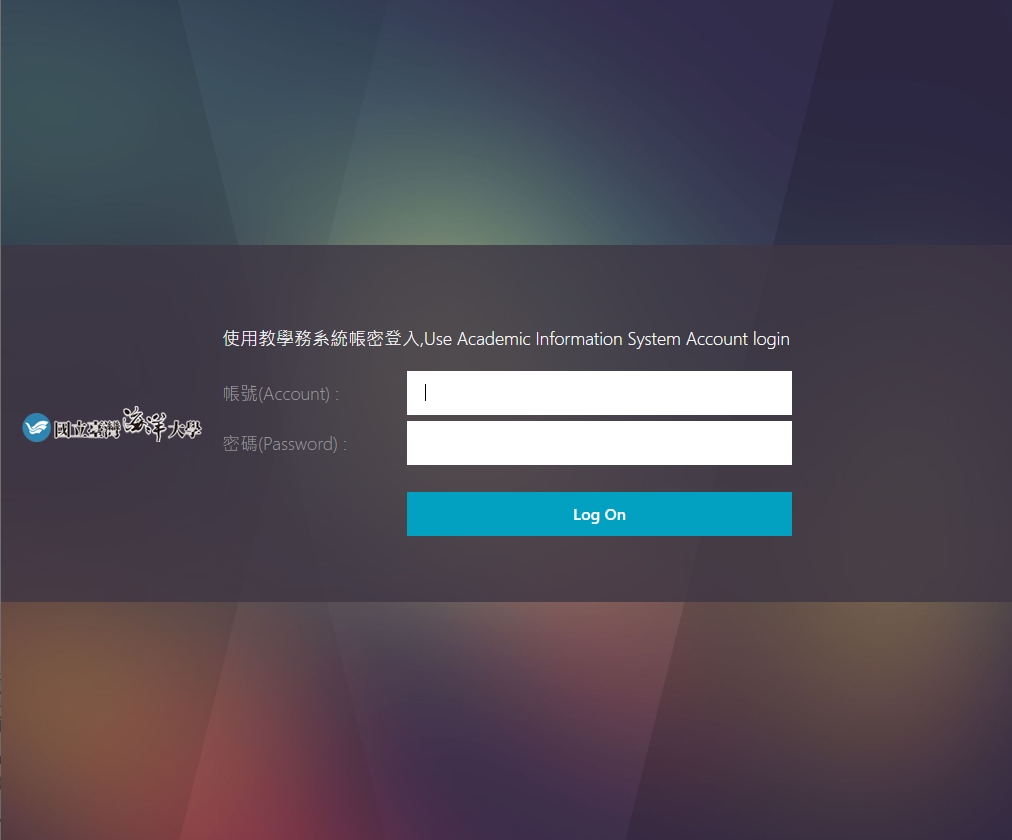
    Virtual Computer Classroom login screen
    Log in with your Academic Information System credentials.
  2. After logging in, click Applications.
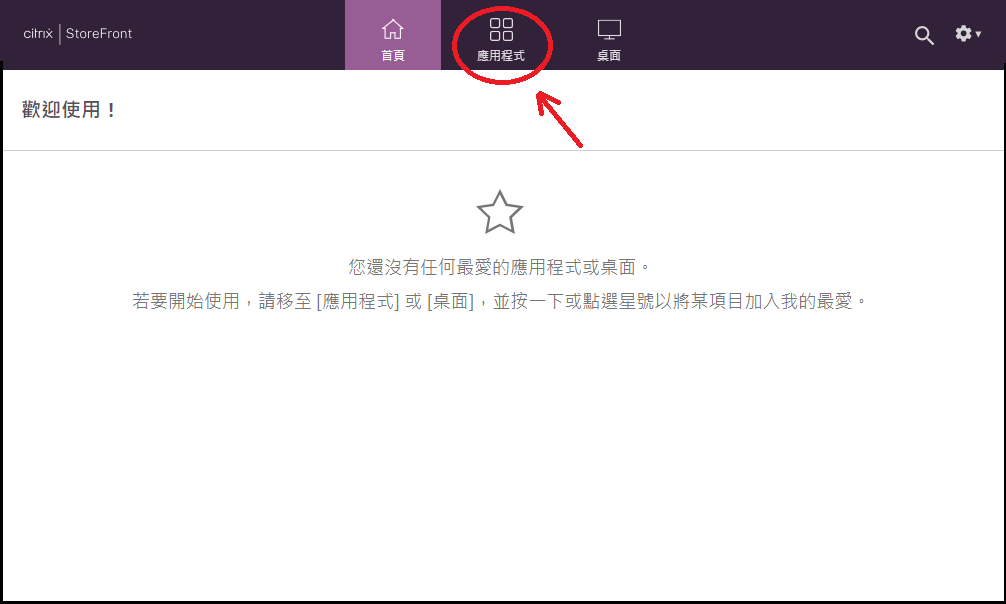
    Applications in the Virtual Computer Classroom
    Click Applications.
  3. Click Library Electronic Resources.

    Library Electronic Resources in the Virtual Computer Classroom
    Open Library Electronic Resources.
  4. Wait while the screen shows that the application is starting.

    Library Electronic Resources startup screen
    Wait for the application to start.
  5. Once started, a browser opens to the library website. Use electronic resources from this browser window.
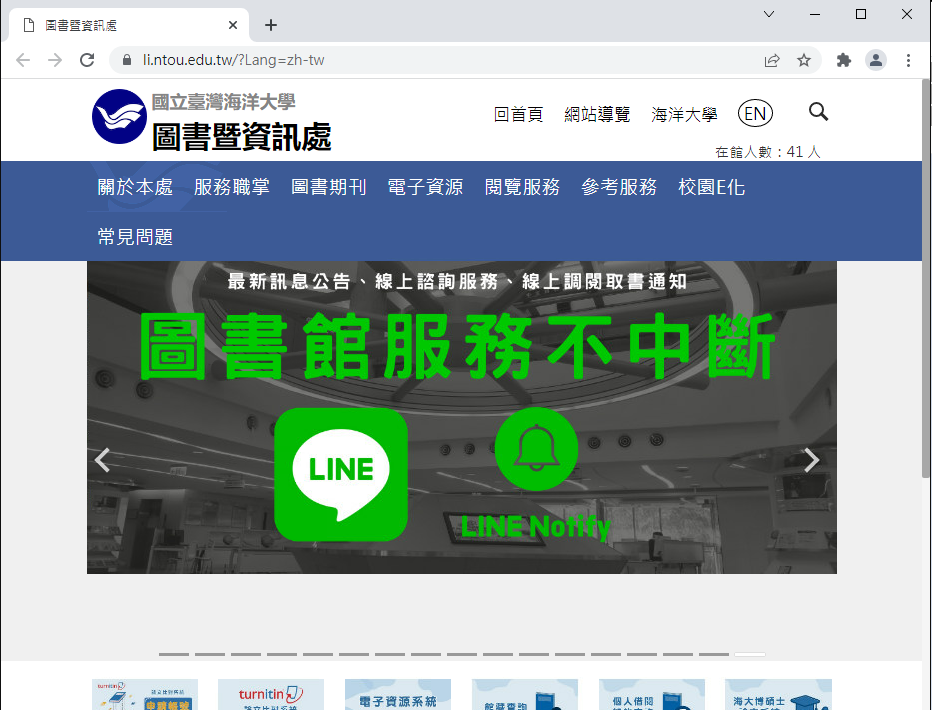

    Library Electronic Resources browser in the Virtual Computer Classroom
    Start from the library website in the newly opened window.

Open Virtual Computer Classroom ↗

Login Success