Jump to the main content block
:::
:::

VPN6 Setup - Multi-Factor Authentication (MFA) Mechanism - Mac

Mac Setup Guide

VPN6 Setup Journey

Follow the route step by step. Each step indicates whether to use your Mac, browser or phone.

⏱ About 10–15 minutes💻 Have your Mac ready📱 Have your phone ready
⚠️ Apply for VPN service before starting setup

Apply through the Academic Information System before logging in to the VPN Portal. The service is activated immediately upon application.

🏫Open Academic Information System
01
💻 Mac computer

Install Sophos Connect

First, install the VPN6 client on your Mac.

Download and open the installer package. Follow the prompts to click Continue, Agree and Install. If authorization is required, enter your Mac user password.

Mac installer (Sophos Connect)
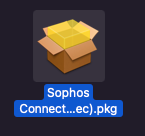
Sophos Connect installer for Mac
After downloading, open the Sophos Connect installer package
If a system extension or notification permission prompt appears during installation, select OK or Don't Allow as shown. This does not affect basic VPN use.
✓ Done when: The Sophos Connect icon appears in your Mac menu bar.
02
🌐 Mac browser

Log in to VPN Portal for the first time

Use your university account to activate your VPN6 setup.

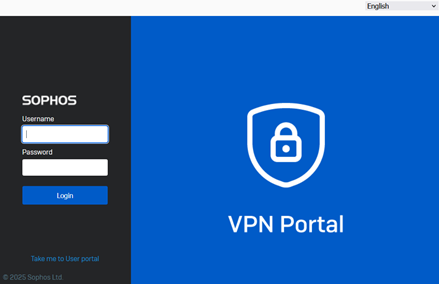
Open the VPN Portal on your Mac and log in with your university email account. (use a computer to open the portal so you can scan the QR code with your phone).

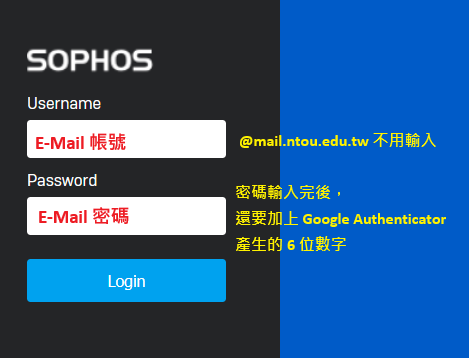
VPN Portal login screen
Do not include @mail.ntou.edu.tw in your username
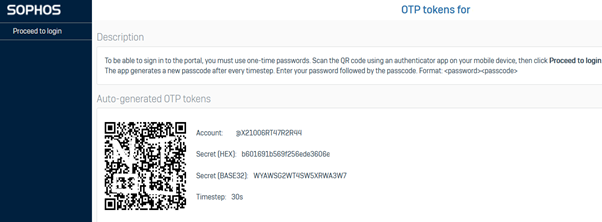
VPN Portal displaying the QR code

A QR code appears after login

If it does not appear, try another browser.

Note: after scanning, click Proceed to login in the upper-left corner

✓ Done when: The Google Authenticator QR code appears on the screen.
03
📱 Now pick up your phone

Set up Google Authenticator

Use your phone to scan the QR code in your Mac browser.

Install Google Authenticator (developed by Google). Open it, tap + and select Scan a QR code. No account registration is required.

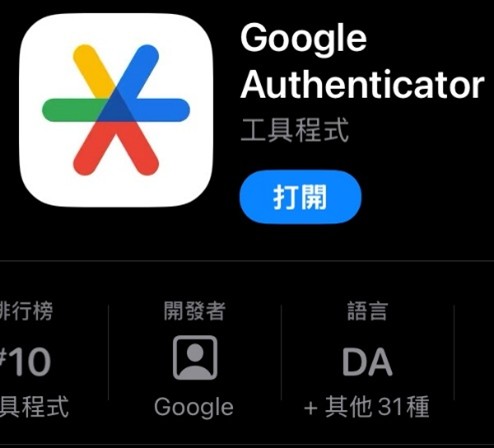
Google Authenticator app
Check that you installed Authenticator developed by Google
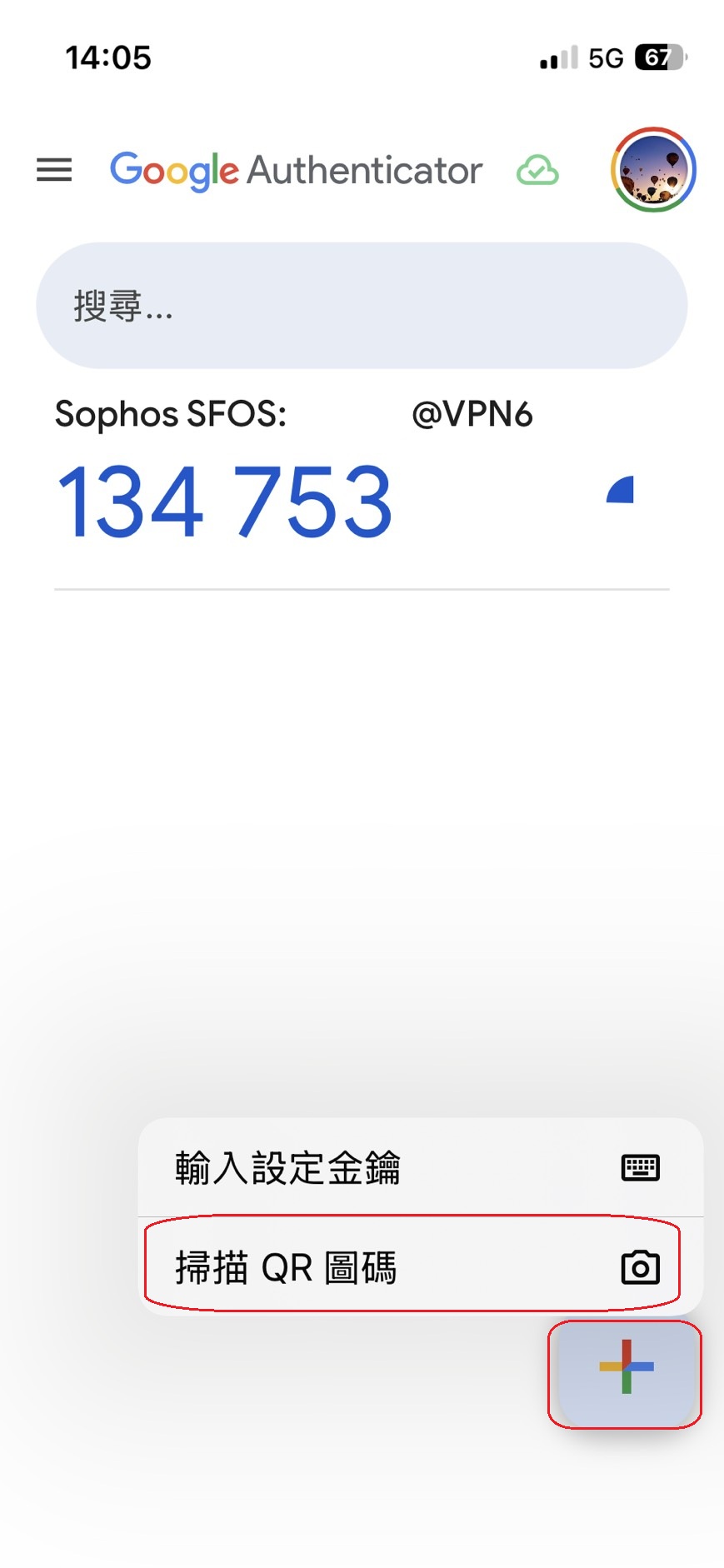
Scanning a QR code in Google Authenticator
Tap +, then select Scan a QR code
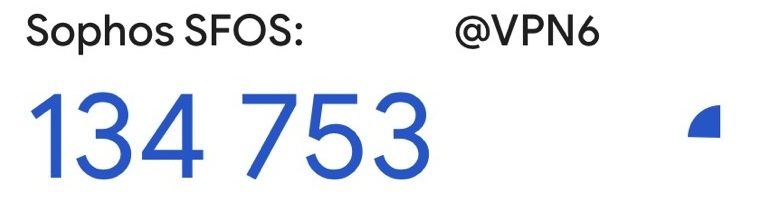
Google Authenticator displaying the VPN6 6-digit code
After scanning successfully, a 6-digit verification code appears. It refreshes every 30 seconds.
Do not delete the Sophos SFOS: username@VPN6 entry. You will need it each time you connect. When finished, log out of or close the VPN Portal.
✓ Done when: Your phone displays Sophos SFOS: username@VPN6 and a 6-digit verification code.
04
🌐 Return to your Mac browser

Download your personal VPN configuration

Log in to the Portal again to obtain your personal SSL VPN Configuration.

For this login, append the current 6-digit verification code shown on your phone directly to your email password.

Email password+Current 6-digit code→EmailPassword123456
Password format for the second VPN Portal login
Second login: append the 6-digit code to your email password
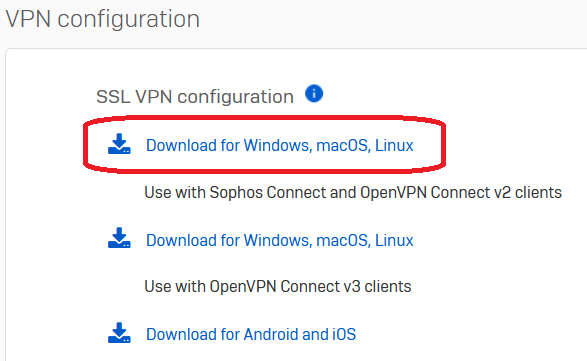
Download SSL VPN Configuration
Download your personal SSL VPN Configuration file
Do not insert spaces between your password and the 6-digit code. The code refreshes regularly; use the numbers currently shown on your phone.
✓ Done when: Your personal VPN6 configuration file has been downloaded to your Mac.
05
💻 Mac computer

Import into Sophos Connect

Add the personal configuration file you just downloaded to Sophos Connect.

Click the VPN configuration file you downloaded and select Open in Sophos Connect to import it.

Opening the VPN6 configuration file in Sophos Connect
Select Open in Sophos Connect
✓ Done when: The VPN6 connection appears in Sophos Connect.
06
💻 Mac computer

Connect to VPN6

Setup is complete. Start from this step for future VPN connections.

Open Sophos Connect from the Mac menu bar and start VPN6. Enter your username and your email password followed by the current 6-digit code.

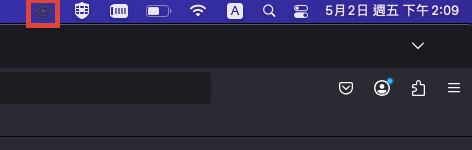
Sophos Connect icon in the Mac menu bar
Open Sophos Connect from the Mac menu bar
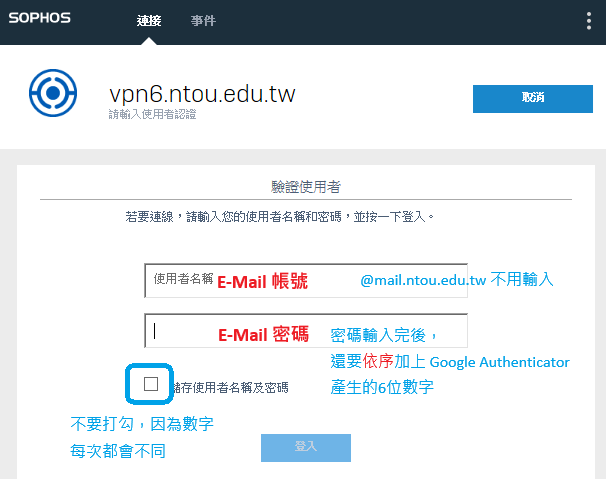
Username: Student ID / usernamePassword: email password + 6-digit code
Sophos Connect username and password screen
Enter your username and email password followed by the 6-digit code
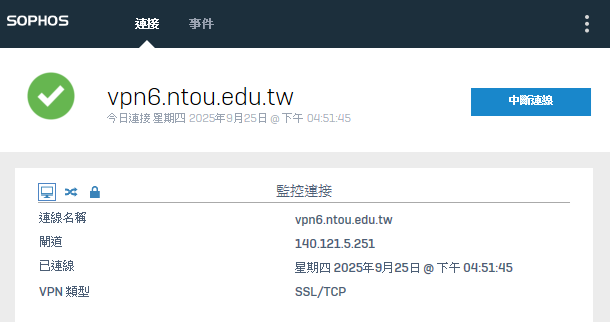
Successful VPN6 connection in Sophos Connect
When the status shows Connected, VPN6 is connected
🎉 Connected! You can now access resources restricted to the campus network.

Common setup problems

If the connection fails, check these three things first.

Username format

Enter only your Student ID / username. Do not include @mail.ntou.edu.tw or any other email domain.

Password format

Append the 6-digit verification code directly to your email password, with no spaces.

Expired verification code

Use the 6-digit code currently displayed on your phone. Once it refreshes, the previous code is no longer valid.

Click Num:
Login Success