VPN Setup - Multi-Factor Authentication (MFA) Mechanism - Windows
When using a VPN, both a computer and a mobile device are required for authentication. Users should prepare a mobile device capable of receiving authentication notifications beforehand to successfully complete the login process.
 First-time installation instructions for the PC client
The first time you use it, you need to download and install two software programs. After that, you don't need to install them again; just run them directly.  I've already installed Sophos VPN, so I'll start using it right away.
►The first software, Sophos Connect►
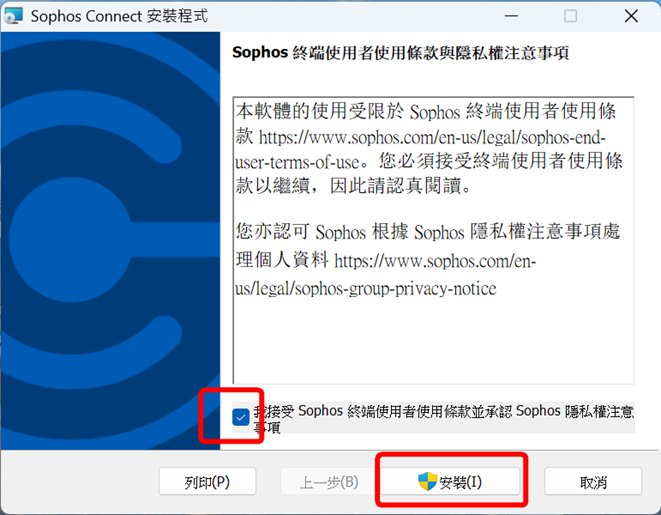
1. download and install SophosConnect 
Check the box and click Install
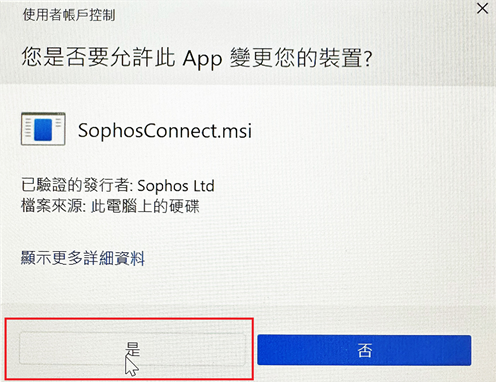
2. Select Yes to allow changes to your device.
3. Check the box to launch Sophos Connect after the installer closes, then click Finish.
►The second software is vpn5.ntou.edu.tw.scx►
download and install vpn5.ntou.edu.tw.scx  。
。
The first-time PC installation process is now complete!! ,But it's not over yet!!!
 Next, please install the mobile device.~
First-time installation instructions for mobile devices (Please remember that you must first apply for VPN service through the academic affairs system; otherwise, you will not be able to log in to the VPN Portal.)
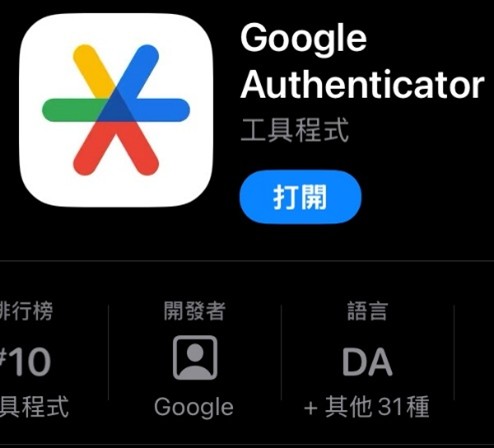
1. mobile device:Before using a VPN, you need to download and install the Google Authenticator app on your mobile device. (iOS: Apple Store; Android: Google Play)。Attention! This product is developed by Google. Do not install it by mistake!
2. Compauter :Using a browser, go to https://vpn5.ntou.edu.tw, enter your school email address and password (you don't need to enter @mail.ntou.edu.tw), and click "Login".
(Note!!! It's an @mail email address, not a @email email address!!! @mail is the school's own email server, while @email is Google's; they are different.)
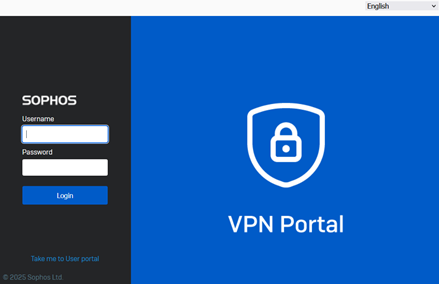
- Username:For students, it's their student ID number; for faculty and staff, it's their account number (@mail.ntou.edu.tw doesn't need to be entered).
- Password: Email Password
3. Compauter :After successfully logging in, you will see a QR code displayed on the screen the first time. (If you do not see the QR code, please try a different browser.)
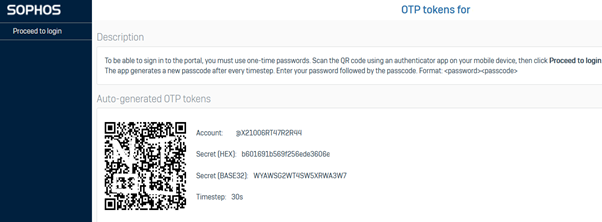
4.mobile device:Enable Google Authenticator on your mobile device (no registration required).
Click the "+" in the bottom right corner and select "Scan QR Code". Point the screen at the QR code on the computer screen from the previous step and scan it.
Sophos SFOS - Do not delete arbitrarily!!!!
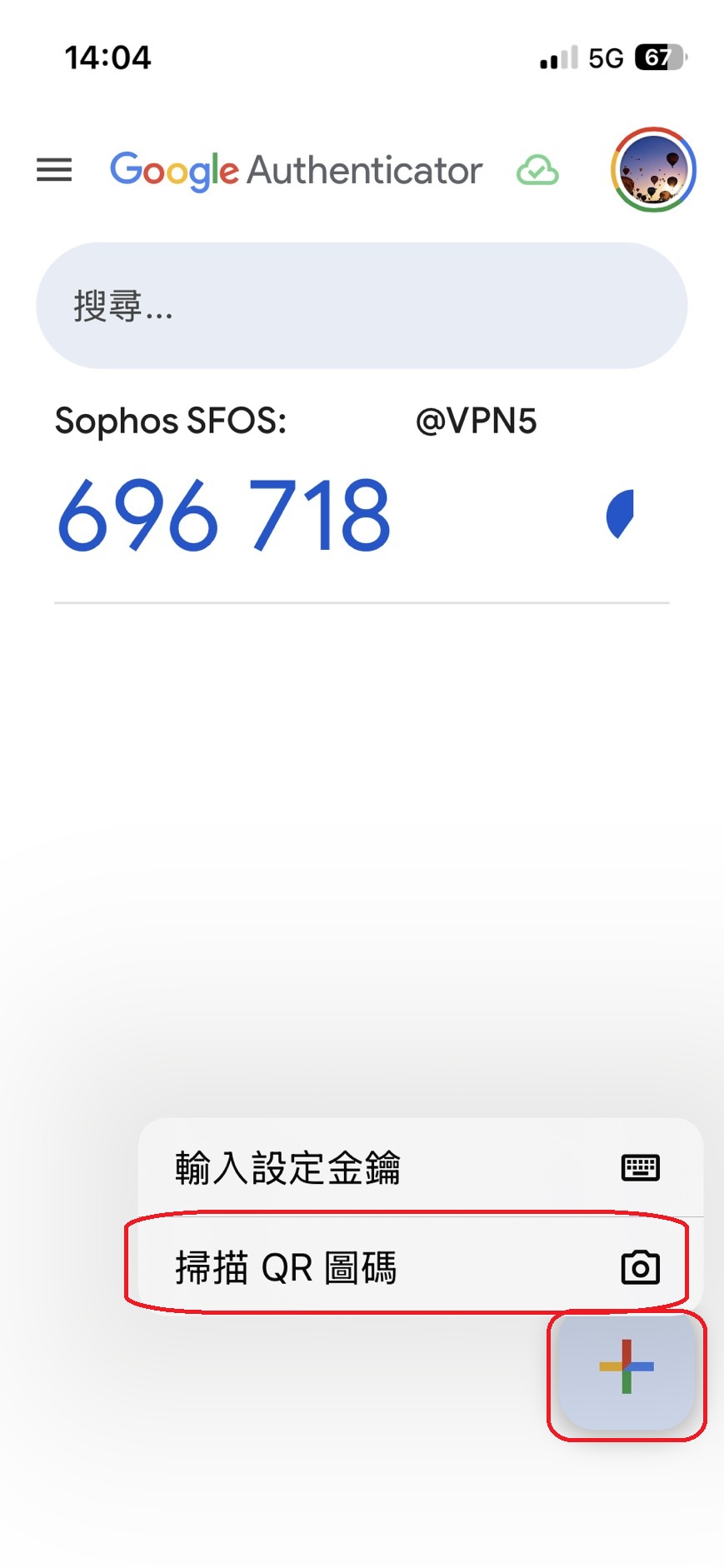
5. mobile device:After your mobile device successfully scans the code, you will see a 6-digit verification code. This code updates automatically every 30 seconds. You will need this code later when using a VPN connection on your computer.
 Supplementary explanation of multi-factor authentication
 :
:
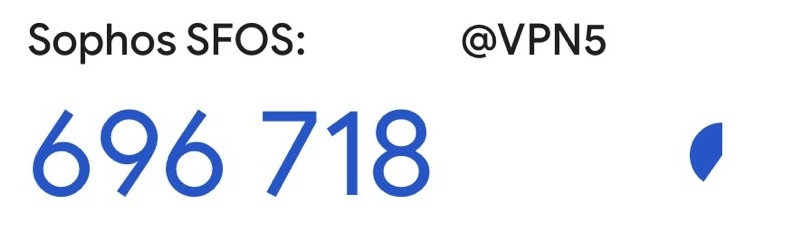
Before logging into the VPN, please open the Google Authenticator app on your mobile device. The screen will display the following two lines...
Sophos SFOS: is your account combined with "@VPN5".
XXX XXX is a randomly generated 6-digit number. A new 6-digit number will be generated every 30 seconds to increase security.
For example:
Getting Started Using Sophos VPN on Windows
1. Select the Sophos application
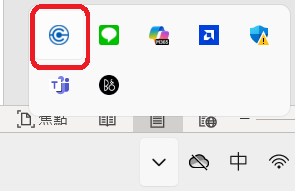
2. Click the link (連接)
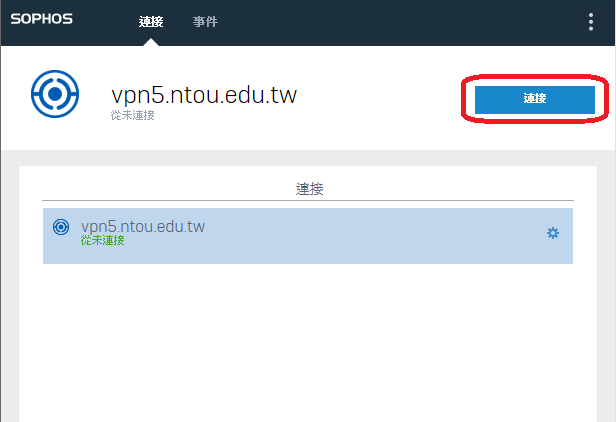
3. The three fields that appear on the user verification screen are as follows:
- The first field is for your email address; @mail.ntou.edu.tw is not required.
- The second field is for your email password.
- The third field is a 6-digit number generated by Google Authenticator.
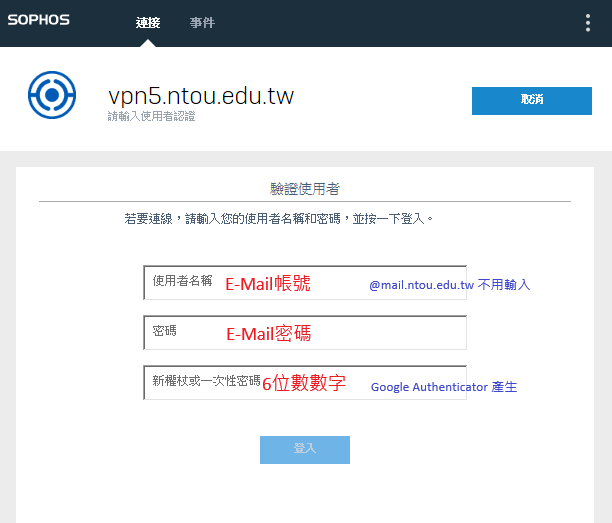
Enter your school email address in the first two fields.
- Account: Students use their student ID number; faculty and staff use their own account number.
- Password: Email password
For the third field, please use your mobile device to run  the Google Authenticator app and enter a 6-digit number displayed on your mobile device screen (this number will change dynamically every 30 seconds, not statically).
- The 6-digit verification code displayed by the app, for example:
4. The following screen indicates that the setup is complete and the connection is successful!
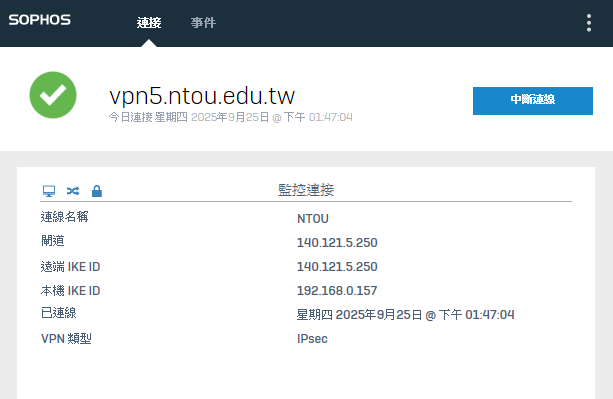
If you search for myIP on Google and the displayed IPs are in the range of 140.121.5.*, it means that the VPN connection is successful and the IP range belongs to Ocean University.。